

MackinVIA
Version: 7.3.0
Please note: An app update is required to take advantage of these new features and fixes.
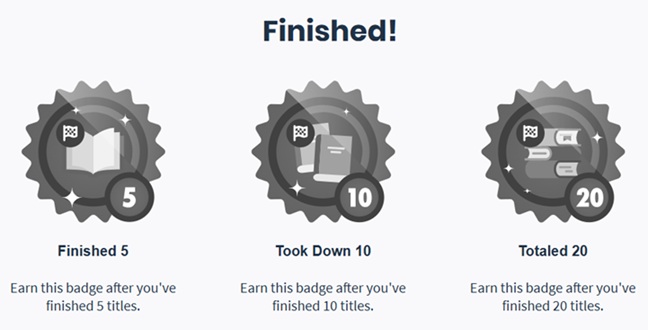
Badge enhancements – Students and staff can earn a new set of badges for finishing eBooks and audiobooks. Badges will be earned for achievements going forward; any previously finished titles will not be counted. Achievements are based on progress percentage, which is also used to calculate the number of books finished on the Administrator Dashboard. Users must be over 90% through a title for it to count toward a badge.
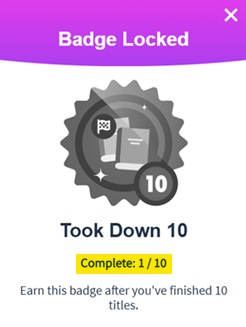
We’ve also added the ability to view progress for badges related to checkouts and books finished. When viewing all badges, click on an unearned badge to see the current total.
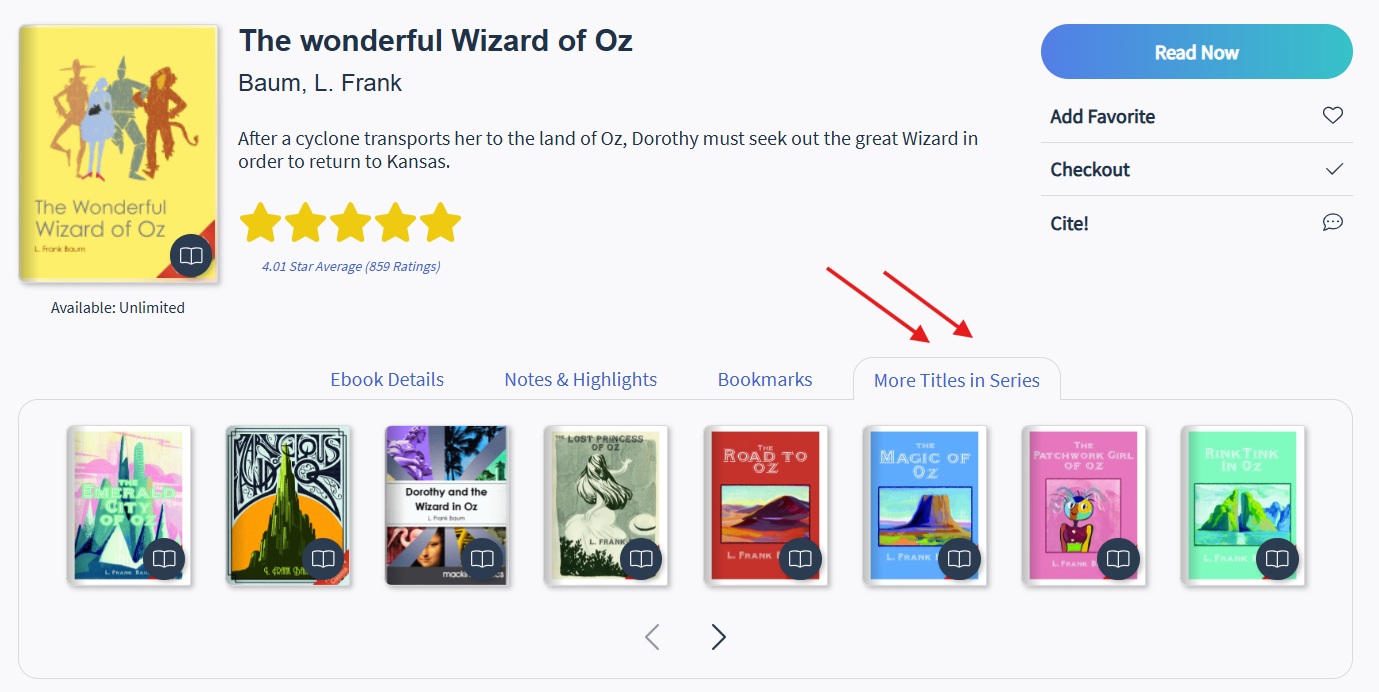
More Titles in Series – When viewing a title that is part of a series, users can now easily find the other books in the series from a new tab on the Resource Details page. Scroll through the carousel of titles, then click on any cover image to open that title’s resource details.
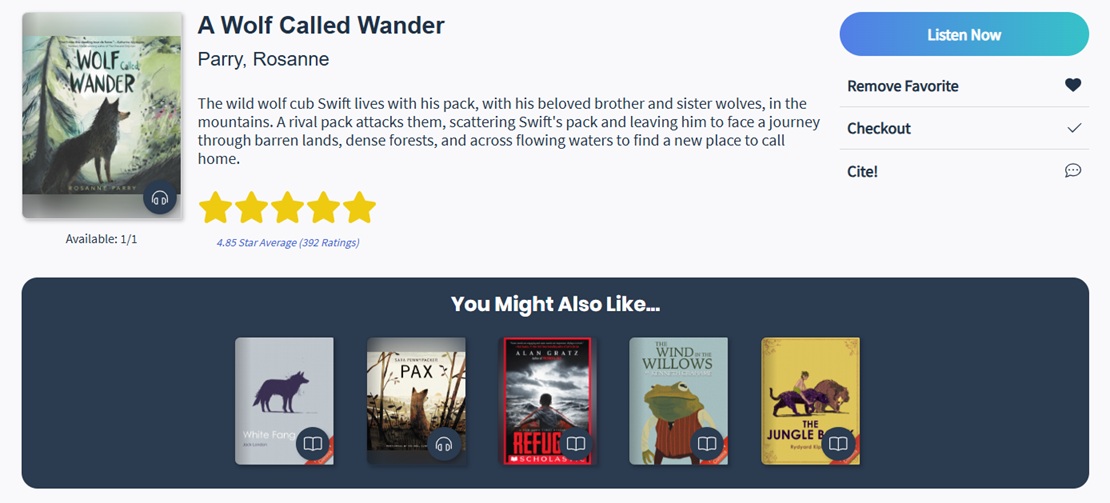
Similar Titles – Students and staff can discover new titles with the Similar Titles feature. Suggestions are based on related subjects, interest level, and language. Up to 12 results will display in a carousel on the Resource Details page under the “You Might Also Like…” section. Click on any cover image to open that title’s resource details. Please note: Suggestions match on individual subject keywords, so titles with related topics may appear even when their subject headings aren’t identical.
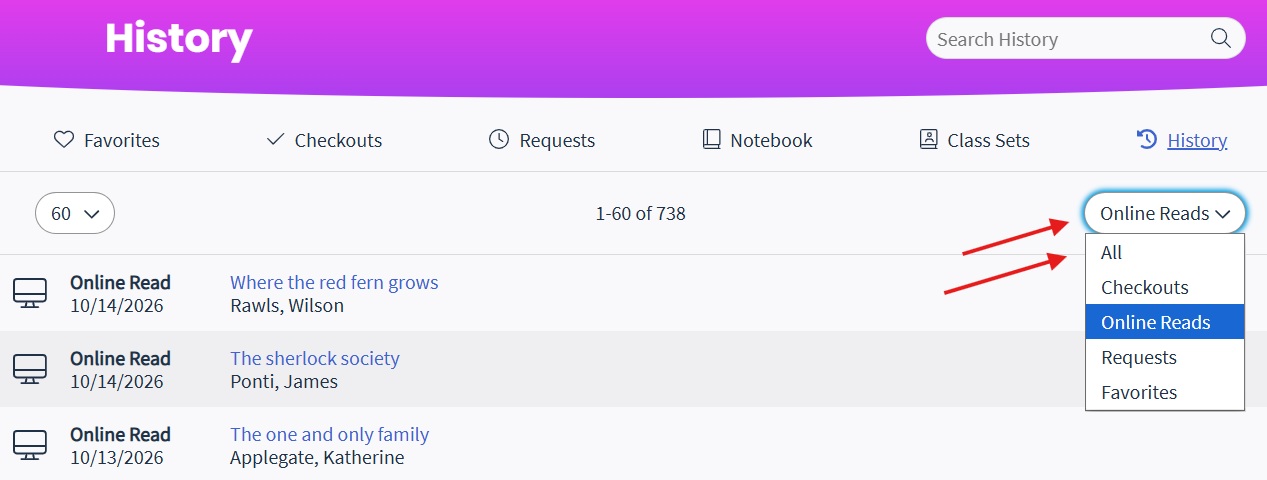
History enhancements – We’ve updated the History page with the following enhancements:
- Primary author added for each title
- Filter titles based on circulation type
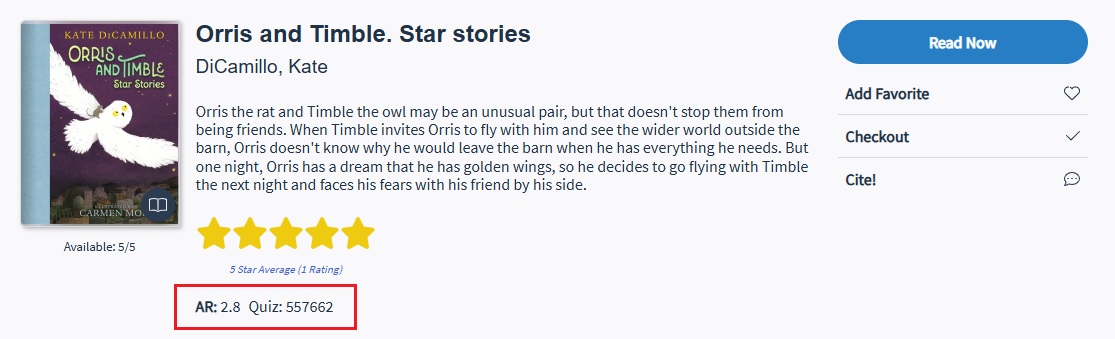
Reading Program levels – Reading program data (Accelerated Reader, Fountas & Pinnell, Guided Reading, and Lexile Level) is now displayed at the top of resource details, so students can easily determine if a resource is appropriate for their reading level. The reading programs are in alphabetical order and follow the search filter settings from the administrator site.
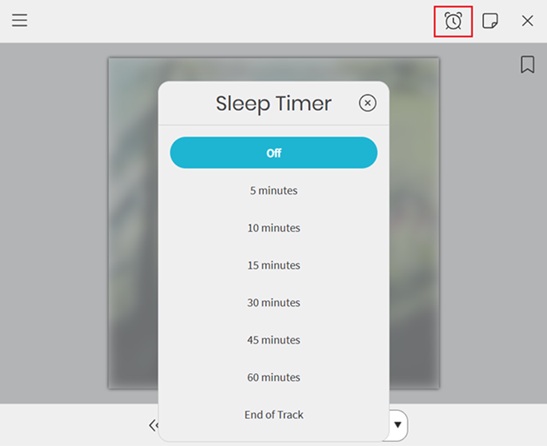
Audiobook Sleep Timer – A new sleep timer is available for audiobooks. Click on the clock icon and select the desired time or the end of the track, and playback will pause automatically once it’s reached. The clock icon turns solid while the timer is active, so it’s easy to see when it’s set. Please note: Users must allow the MackinVIA app to run in the background when prompted on Android devices to use this feature.
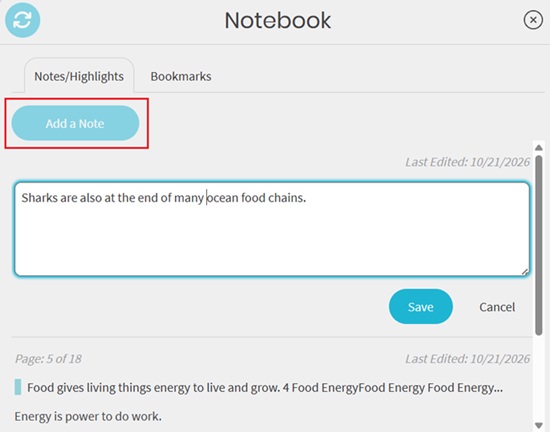
General Notes in Reader – Users can now add a General Note to an eBook or audiobook while reading or listening to it. Previously, this option was only available from the Resource Details page. General Notes allow users to capture thoughts, reminders, or make other notations about a title without associating them to a specific highlight. These notes will appear in both the Reader Notebook and on the Notes & Highlights tab of the title’s resource details. Edit or delete from either location. Changes made in one place are reflected in the other, so notes always stay in sync.
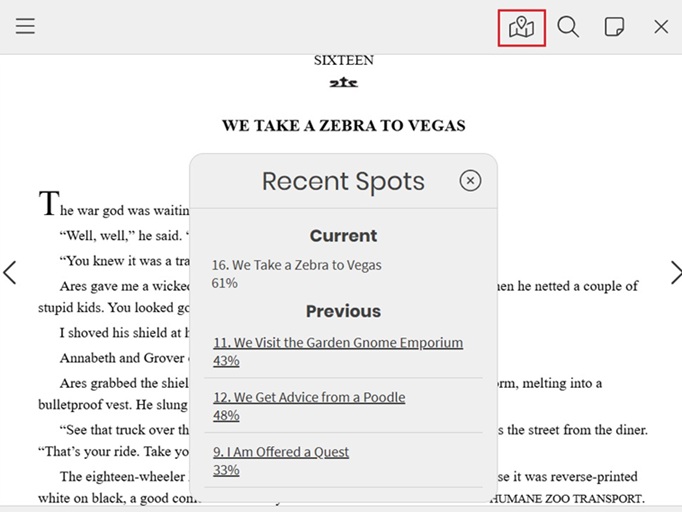
Recent Spots – The Recent Spots feature displays a history of recent positions in the Reader, so users will never lose their place in an eBook or audiobook. A spot is saved when selecting a chapter/track from the Table of Contents or navigating with the progress bar. Click on the map icon to view the list. Each spot shows the chapter or track and position, along with the current location. Select any spot to go straight back to it. Turning pages and skipping tracks or using forward/back 30 seconds buttons will not create spots. The most recent spots are saved while the book is open and cleared after it’s closed.
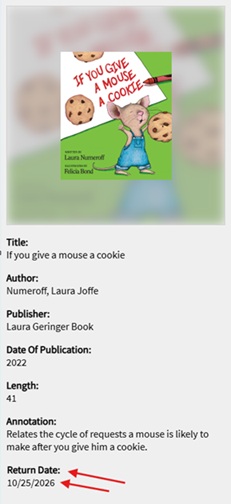
Return Date in Reader – The Return Date has been added back to the Reader for checked out resources. From the main menu, select Ebook or Audiobook Details to see the due date.
MackinVIA Admin
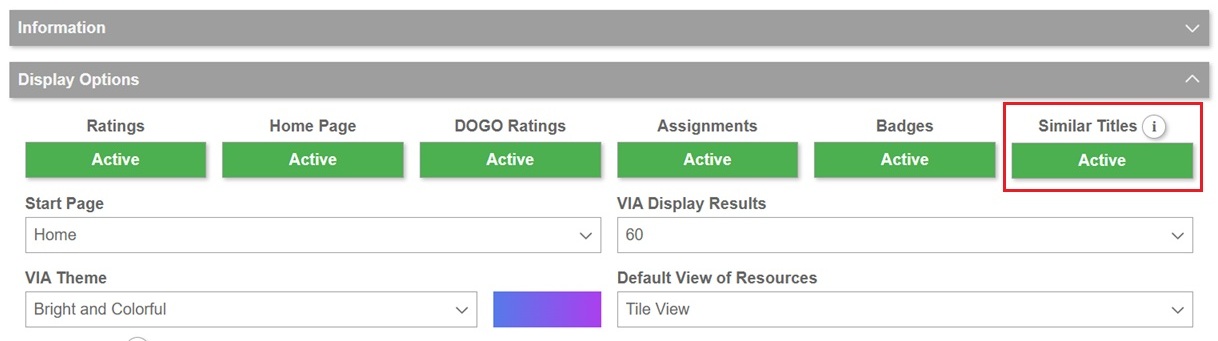
Similar Titles setting – To support the Similar Titles/You Might Also Like feature, a new setting is available on the Display Options panel of the General Settings page. Similar titles will be active by default, but administrators can choose to deactivate the feature for their account if desired.
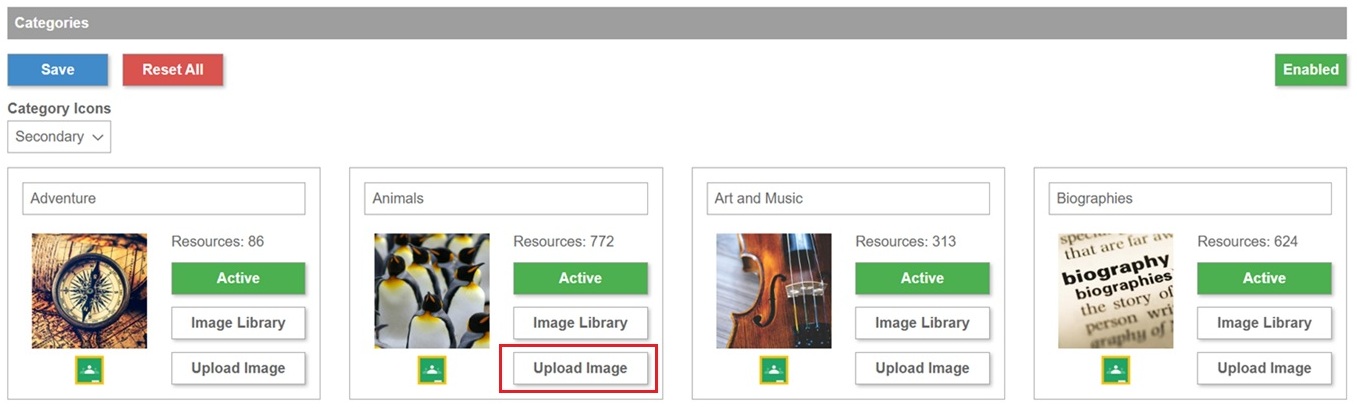
Category images – Administrators can now customize categories by uploading their own images from the Categories Settings page. Select the Upload Image button for the desired category and click to add the image file or drag/drop it into the uploader.
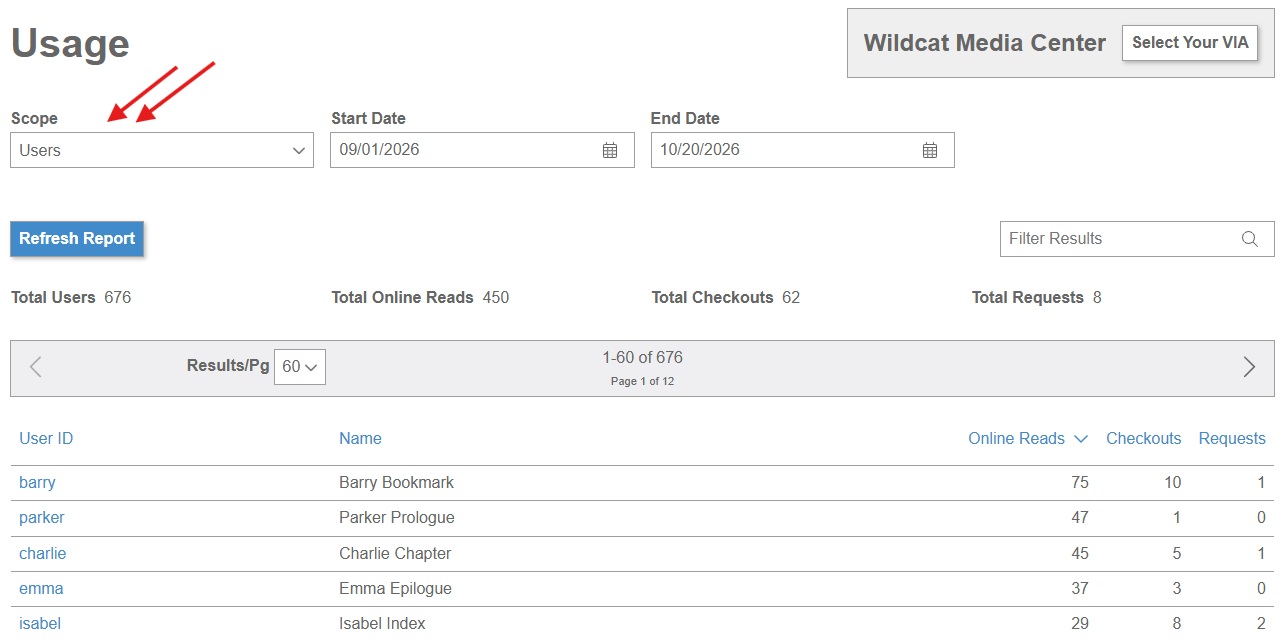
Usage Report for Users – A new report is available which allows administrators to easily view usage information for all active Backpack users. This report displays the number of online reads, checkouts, and requests per user over a specified timeframe. Administrators can click on a user to see title-level activity for the timeframe selected. In addition, the total number of logins, online reads, checkouts, and requests are included at the top of the report. To access the report, go to Reports > Usage and select “Users” as the Scope.
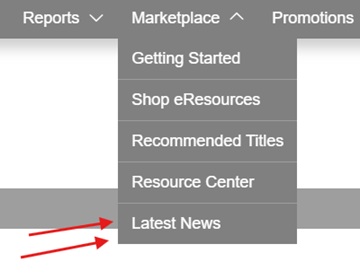
Latest News – A link to the Latest News page has been added to the Marketplace menu. This allows administrators to easily access release notes and learn more about new features.
Group Managers and Edit permissions – Group Managers are now able to edit group details and add instructions, tags, or an image when the Manager of a group is set to “All Group Managers”. Previously, Group Managers could only add or remove resources for these groups. Please Note: The Manager field will be read-only when set to “All Group Managers”. Any changes to this field must be made by a Full Administrator.